This is the second example in which I go through the entire process, step-by-step with screenshots, of me setting up a new investment account and investing £10,000 of my own money. There were some glitches in Fidelity’s system when I went through this process. I’ve included those glitches and what I did to overcome them. This can happen from time to time on even the most robust websites. It’s appropriate to include it to be both accurate and to demonstrate that it’s not a major problem, just an issue to overcome.
These are the different stages that I cover on this page. Scroll down or click on the ones of interest:
Setting up a new investment account with Fidelity
Adding cash to the account
Using the most appropriate model portfolio
Identifying the funds I need to buy
When I prefer to buy and sell funds
The allocations won’t match precisely
Adding funds to the list of funds I want to buy
What to do if the fund is no longer available
Funds selected, time to buy them one-by-one
It doesn’t always go smoothly
Placing the first order
Confirming that I’ve bought a fund
Buying the second fund
Buying the third fund – problems I encountered
Using Fidelity’s helpline
Buying the third fund successfully
Buying the fourth fund
Confirming that I’d bought the third and fourth funds
Note the cash balance and the small loss
Next steps
Setting up a new investment account with Fidelity
Fidelity is good for:
- Share dealing accounts/ General Investment Accounts (GIAs)
- Individual Savings Accounts (ISAs)
- Self Invested Pension Plans (SIPPs)
I do all the following on my computer, not on a mobile phone. The Fidelity mobile phone app doesn’t have a great reputation. And, in any case, I don’t want phone apps because they just nagging at me to look at them. My idea of a good investment plan is one that I can forget about for a year while I get on with my life.
To begin with, I go to this website {Fidelity affiliate link*} (LINK)
I click on the “Services” tab towards the top-left of the screen which brings up a list of accounts to choose from.
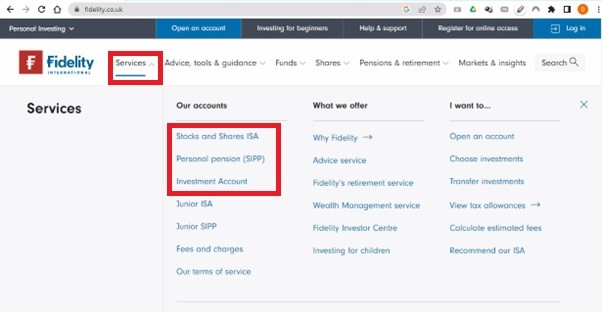
I then clicked on the one that’s appropriate for me, a tax-efficient ISA or SIPP (UK only), or an Investment Account.
From here, you then need to provide information including:
- Your NI number (UK only)
- Debit card details (for a single payment)
- Bank or building society details (if you’re planning on setting up a regular savings plan)
- Tax status
- Address
- Employment status
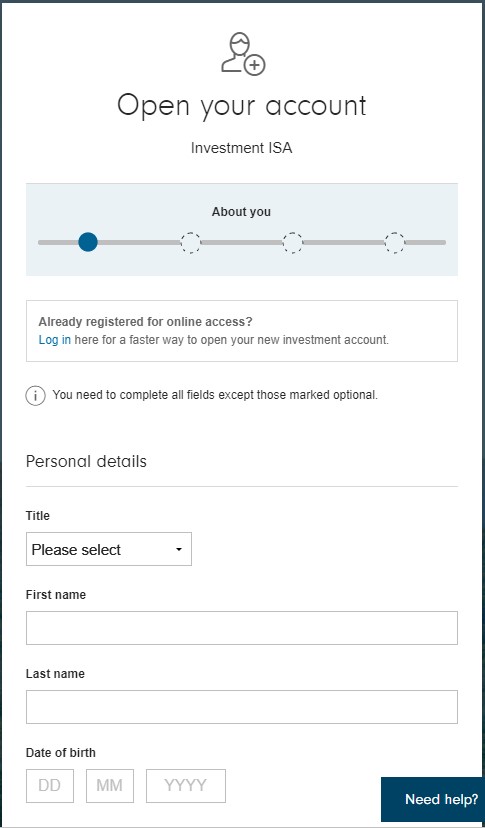
Complete the required information which begins as follows:
I don’t sign up for noise and distraction. If Fidelity absolutely must, it can contact me regarding my account. But I don’t want any of the communications outlined below. I therefore clicked “No” on all the listed options.
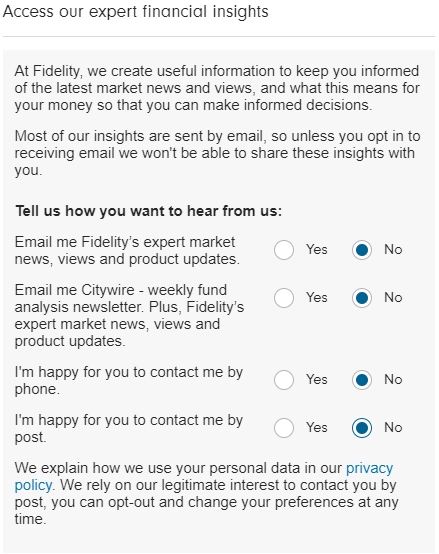
I should mention that, having gone through this process, I can confirm that I still received a ton of useless email junk. I ended up changing the email address to a false one so that Fidelity could bombard itself with undelivered messages.
At this stage, Fidelity makes what is a legitimate request for documents to prove who you are. It is obliged by law to gather these documents from you. Without them, you won’t be able to open an account.
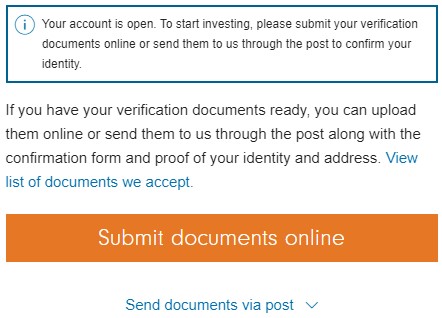
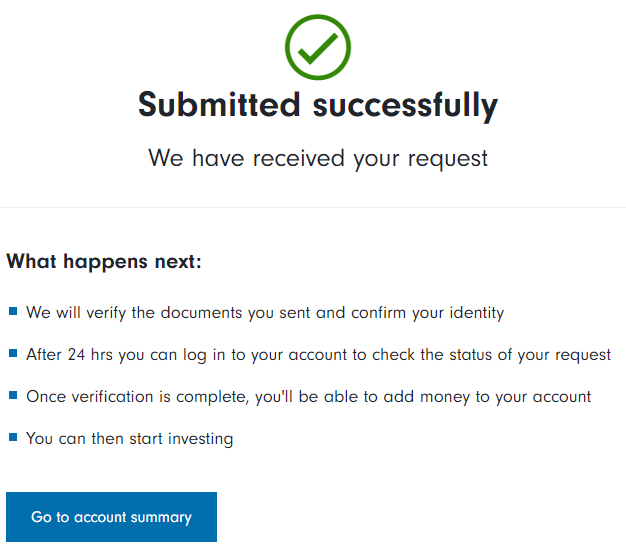
On submitting your proof of identity (photo of your driving licence or passport), you’ll see this message:
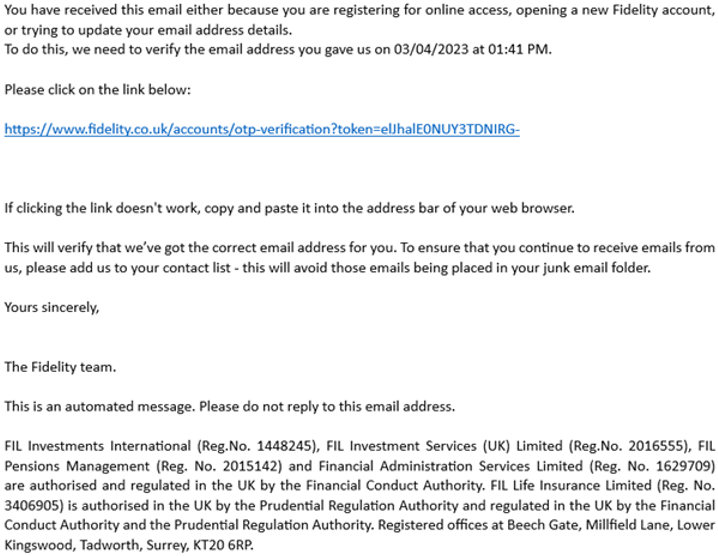
You will then receive the following email verification as shown here.
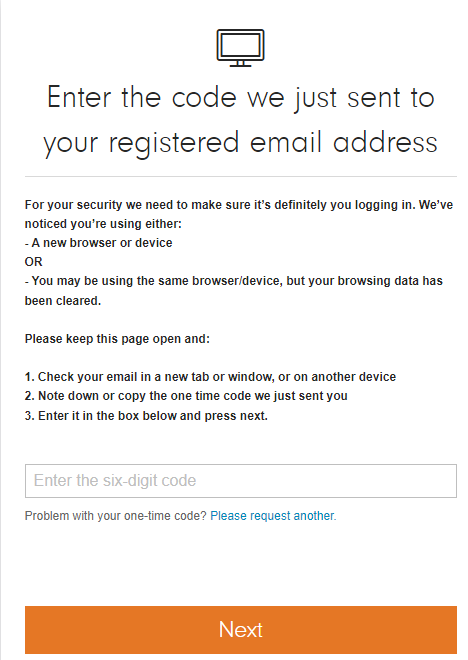
This is the verification you’ll see when you sign in.
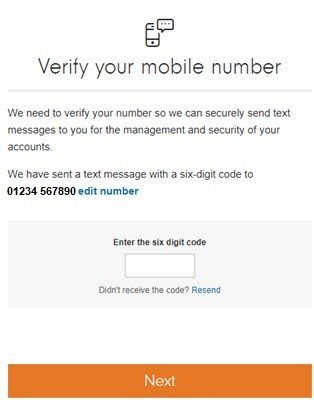
Mobile phone verification is next:
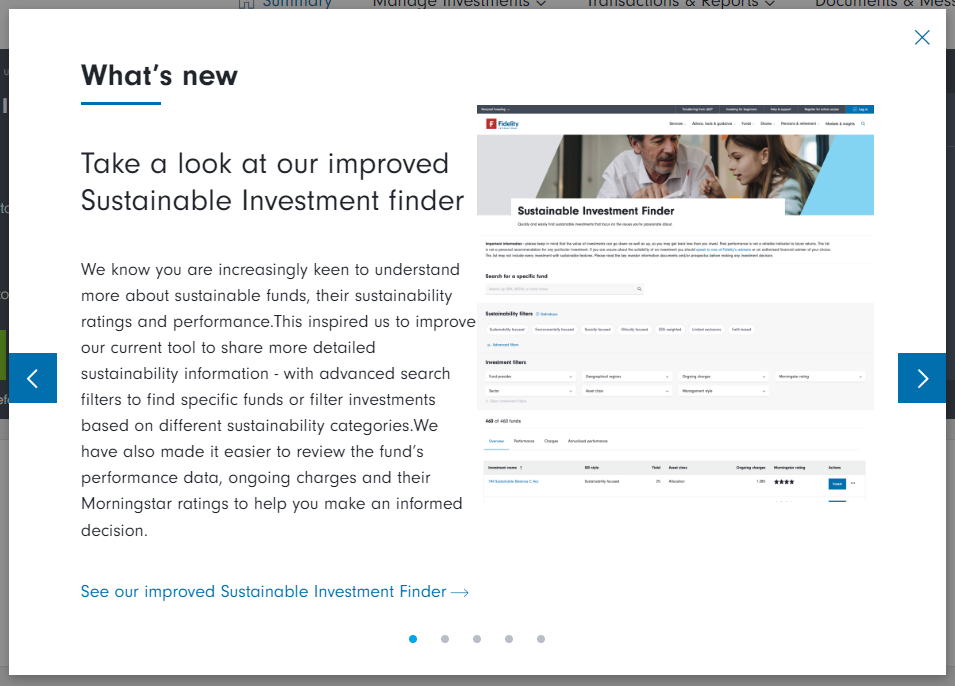
Now, Fidelity immediately tries to sell you some of its own, more expensive funds. I ignored this by clicking the “X” in the top right-hand corner.
Return to the top of the screen
Adding cash to the account
You can add cash by clicking the green “Add cash” button and following the instructions which are fairly intuitive.
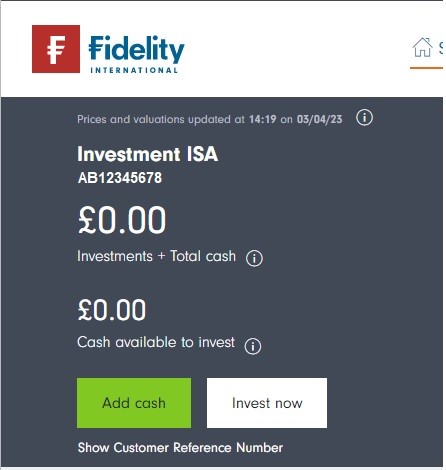
You must submit documents before you add cash or transfer money over from an existing SIPP or ISA.
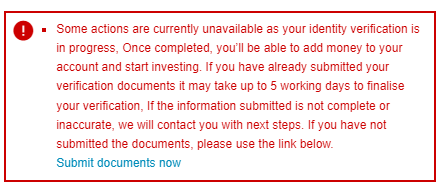
If you haven’t already provided your identification documents or if they have not yet been reviewed and confirmed, this message will appear:
Using the most appropriate model portfolio
In this example, I’m going to invest £10,000. Having completed the risk questionnaire, I have confirmed that my risk tolerance is “higher”.
Therefore, the model portfolio I’m going to copy is the Tier 2, Higher-Risk Model Portfolio (see Portfolios I Copy – Tier 2):
| Cash* | Global Government Bonds |
Global Corporate Bonds |
Global Shares |
Alternatives | |
| Lower-Risk | 1%* | 41% | 25% | 33% | 0% |
| Medium-Risk | 1%* | 21% | 22% | 51% | 5% |
| Higher-Risk | 1%* | 8% | 8% | 78% | 5% |
Identifying the funds I need to buy
Looking at the lists of funds (LINK), I can see that these are the cheapest funds that I need to buy for my new portfolio:
| Asset Class | Fund | OCF | ISIN |
| Global Government Bonds | Amundi Index Solutions – Amundi Prime Global Govies UCITS ETF DR (PRIG) | 0.05% | LU1931975236 |
| Global Corporate Bonds | ISHARES OVERSEAS CORPORATE BOND INDEX CLASS H – ACCUMULATION (GBP) | 0.11% | GB00BPFJD529 |
| Global shares | Amundi Index Solutions – Amundi Prime Global UCITS ETF DR (PRIW) | 0.05% | LU1931974692 |
| Alternatives | iShares Developed Real Estate Index Fund (IE) Class D GBP | 0.17% | GB00B5BFJG71 |
Work out how much of each fund I need to buy
Trust me, this is a simple calculation.
If you wanted to know what 1% of a number is, you’d multiply the number by 0.01. For example, 1% of 37 is 0.01 x 37 which equals 0.37.
2% of 37 is 0.02 x 37 which equals 0.74
87% of 37 is 0.88 x 37 which equals 32.56
100% of 37 is 1.00 x 37 which equals 37.00.
The calculation in my new £10,000 portfolio
I want:
1% in cash i.e., 0.01 x £10,000 = £100
8% in global government bonds i.e., 0.08 x £10,000 = £800
8% in global corporate bonds i.e., 0.08 x £10,000 = £800
78% in global shares i.e., 0.78 x £10,000 = £7,800
5% in alternatives i.e., 0.05 x £10,000 = £500
To make sure I’ve got that correct, I add the numbers up. They should add up to £10,000.
To show you what this means, here’s the fund table again, but with the allocations added:
| Asset Class | Fund | OCF | ISIN | £ Allocation |
| Cash* | Leave this as cash in the account. Don’t buy anything with it. | £100* | ||
| Global Government Bonds | Amundi Index Solutions – Amundi Prime Global Govies UCITS ETF DR (PRIG) | 0.05% | LU1931975236 | £800 |
| Global Corporate Bonds | ISHARES OVERSEAS CORPORATE BOND INDEX CLASS H – ACCUMULATION (GBP) | 0.11% | GB00BPFJD529 | £800 |
| Global shares | Amundi Index Solutions – Amundi Prime Global UCITS ETF DR (PRIW) | 0.05% | LU1931974692 | £7,800 |
| Alternatives | iShares Developed Real Estate Index Fund (IE) Class D GBP | 0.17% | GB00B5BFJG71 | £500 |
When I prefer to buy and sell funds
The market for shares, bonds and funds opens at 8am, UK time. For the first hour or so, prices of everything can jump around as big traders (banks and the like) digest news that’s come out since the market closed the previous day.
I prefer to wait until that’s all calmed down and prices have settled into what buyers and sellers generally agree to be a fair price for the time being. The next jumble of chaos comes when the US markets open at 9.30am New York time which equates to 2.30pm UK time.
 Rip-off Tip-off
I prefer to buy and sell funds between 9.30am and 2pm London time.
Things tend to be fairly calm during those hours
And, in case you hadn’t guessed, markets are closed on public holidays and weekends. Some funds can’t be bought outside trading hours but orders can be placed to buy them when markets open the next day.
The allocations won’t match precisely
I’ll aim to buy as close to £800 of global government bonds, £800 of global corporate bonds, £7,800 of global shares and £500 of alternatives as I can. But in each instance, the actual amount I buy will be slightly less. This will leave me with slightly more than £100 in cash in the account, and that’s fine.
Adding funds to the list of funds I want to buy
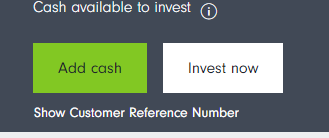
To actually buy the funds, I now need to click the “Invest now” option as shown below.
I ignore the fact that the “Add cash” button is green. This is always green even when you’ve added cash.
Next, I click the blue plus (+) sign, captioned as “Add investments”.
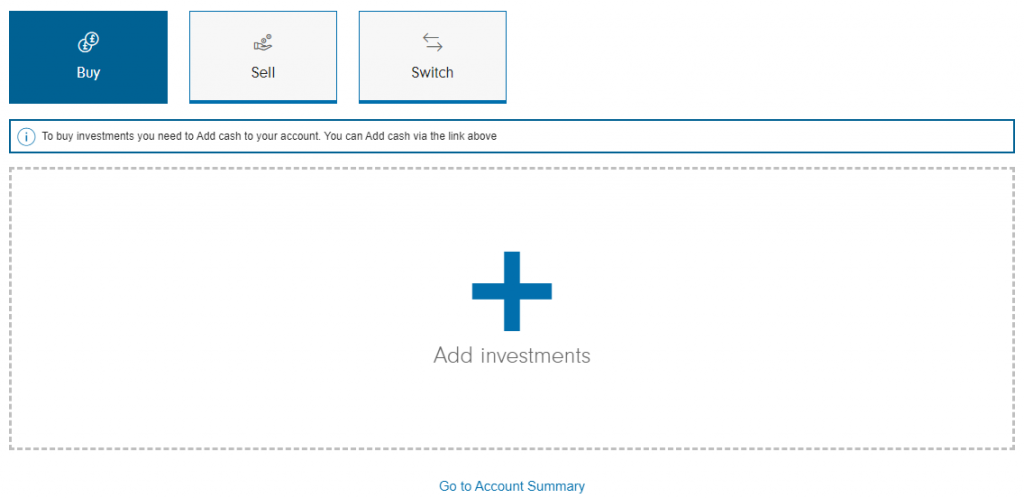
Which brings up this screen:
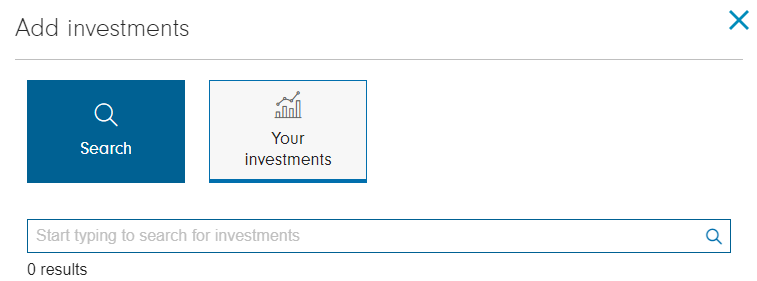
I now type in the ISIN for the fund that I want:
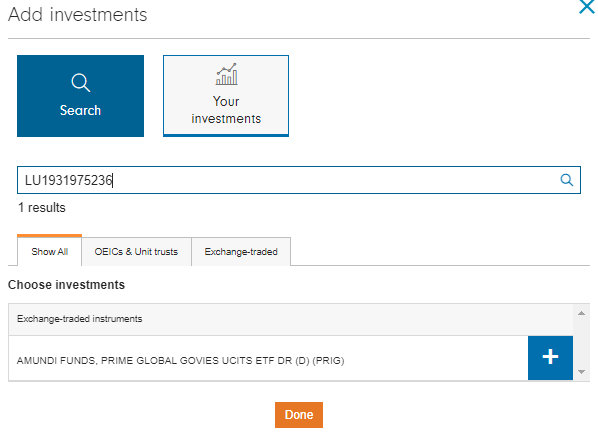
I now click on that fund’s plus (+) sign.
I don’t click the “Done” button quite yet. I click that when I’ve added all the funds I want to buy. If I click it too soon, I just click the blue plus (+) symbol under “Add investments” again.
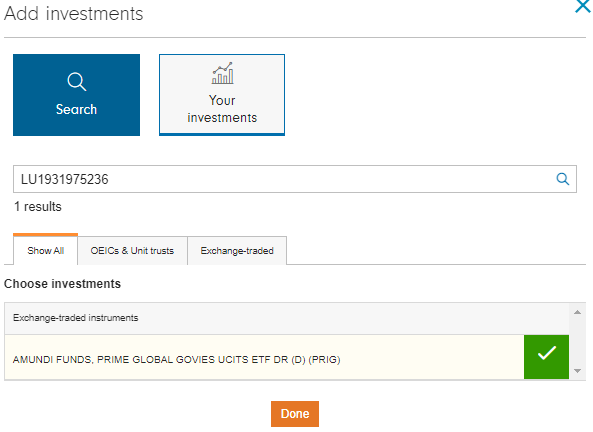
This replaces the plus (+) sign with a green tick mark (as shown above).
I repeat this step for all the funds that I need to build my portfolio.
What to do if the fund is no longer available
The following message appeared while I was originally putting this together for this book from which this website is drawn:
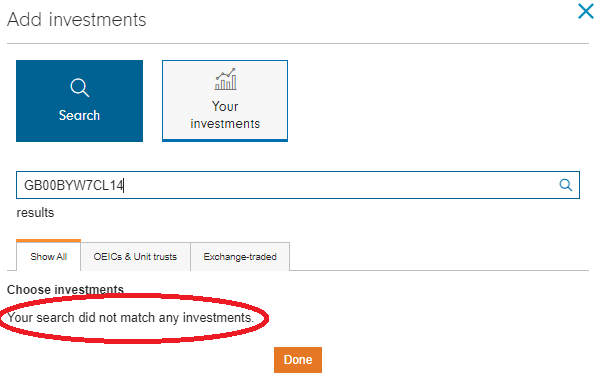
When this happened, I went back to the list of specific funds I like for the relevant asset class (in this case it was Global Government Bonds) and found the next-cheapest fund. I copied the ISIN from that fund and entered it instead. This is the one I have included on this web page.
Funds selected, time to buy them one-by-one
Once I’d done this for all the funds I needed for my chosen portfolio, I hit the orange “Done” button. This took me to the following screen:
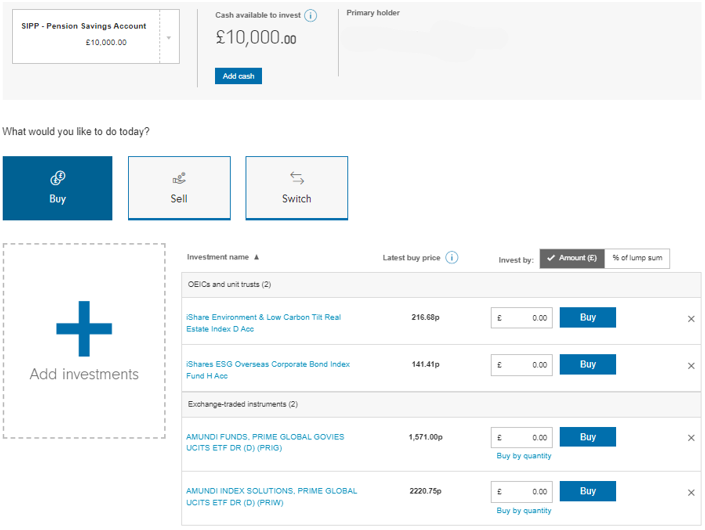
I then double-checked that I’d got the correct funds.
I clicked on each fund title shown in blue…
…which took me to the page shown below. Here, I can confirm that the title sounds about right (different companies use different abbreviations). Most importantly, therefore, I made sure the ISIN is correct:
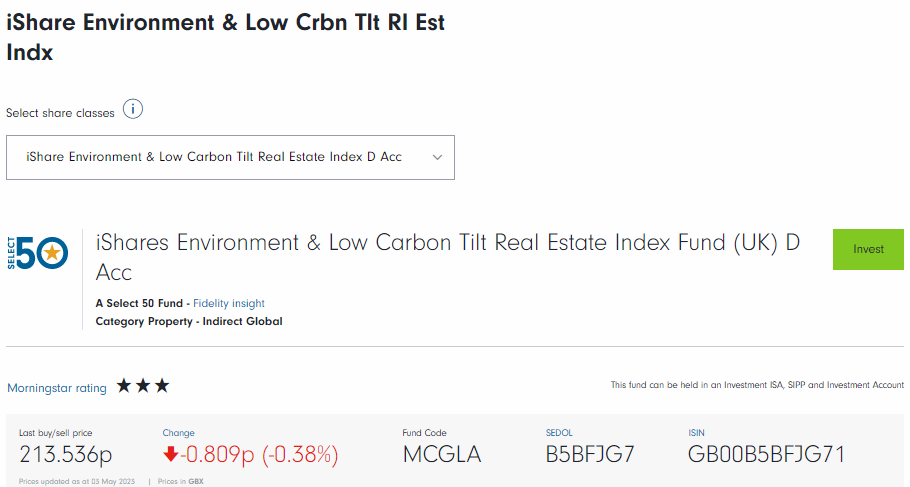
At this stage, I don’t click on anything. I just scroll down to the ISIN number as shown in the screen shot sample above.
It doesn’t always go smoothly
Fidelity rearranges the order of the funds that I’ve selected to suit Fidelity. I can’t put them in the order I want (as far as I can see – my apologies to Fidelity if I’ve missed something).
This is unhelpful as it means that I have to be careful about how much I buy of each fund.
I had them in this order (from lowest- to highest-risk):
- Global government bonds, ISIN LU1931975236
- Global corporate bonds, ISIN GB00BPFJD529
- Global shares, ISIN LU1931974692
- Alternatives (real estate), ISIN GB00B5BFJG71
Fidelity has put them in alphabetic order:
- Alternatives (real estate), ISIN GB00B5BFJG71
- Global corporate bonds, ISIN GB00BPFJD529
- Global government bonds, ISIN LU1931975236
- Global shares, ISIN LU1931974692
I’ve spotted it, so I can address it. This is what I need to allocate in the order in which Fidelity has put the funds I want to buy:
- Alternatives (real estate), ISIN GB00B5BFJG71 £500
- Global corporate bonds, ISIN GB00BPFJD529 £800
- Global government bonds, ISIN LU1931975236 £800
- Global shares, ISIN LU1931974692 £7,800
Logged out and selections wiped
While I was doing this, Fidelity logged me out, deleting the selections I’d made. I had to go back to the beginning of “Buying the funds” earlier in this chapter.
Also, the website shows the “% of lump sum” option, but you can’t use it to buy ETFs. This is a shame and something that I’d like to see Fidelity change. Instead, I used the allocations of cash to each fund as calculated above; this is also what I did on the other example of setting up an investment portfolio.
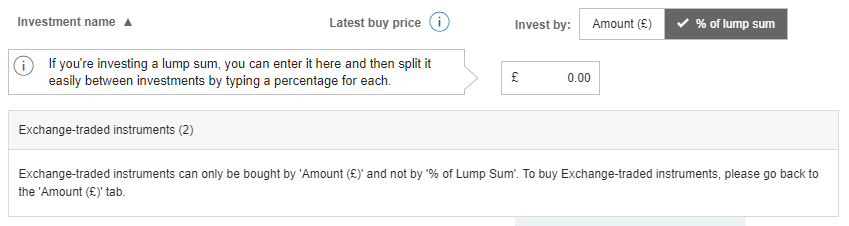
If you haven’t already got it selected (tick mark and with dark background), click on the “Amount (£)” tab:
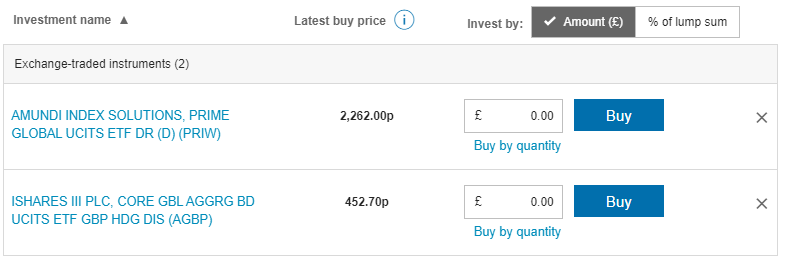
Now I can type in the amount of money’s worth I want to buy of each fund:
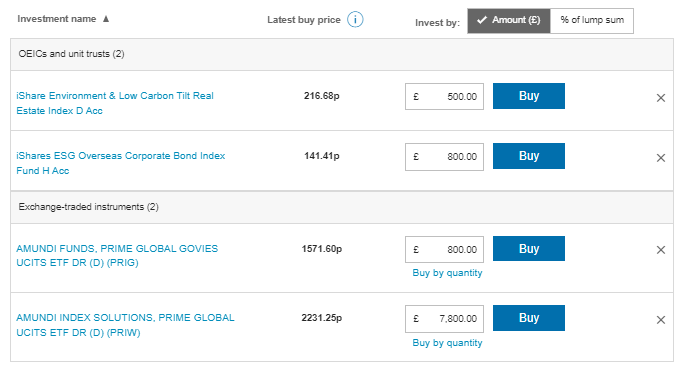
Placing the first order
I click the blue “Buy” button next to the fund I want to buy. In this case I happen to do them from top to bottom in the order that they appear on the screen.
This brings up the following screen:
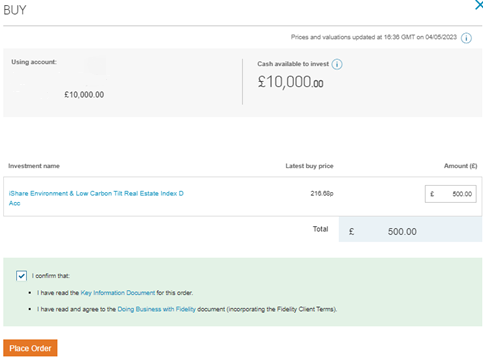
I click the “I confirm that” tick box at the bottom of the page because I have read the Key Information Document (I click on the blue words “Key Information Document” to access it) and I’ve read and agreed to the “Doing Business with Fidelity” stuff.
I then click the orange “Place Order” button at the bottom, which brings up this screen:
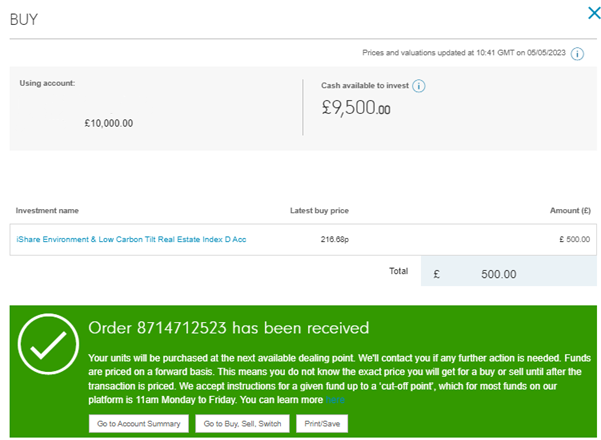
Confirming that I’ve bought a fund
Next, I click the “Go to Buy, Sell, Switch” button at the bottom of the screen which brings me to this screen:
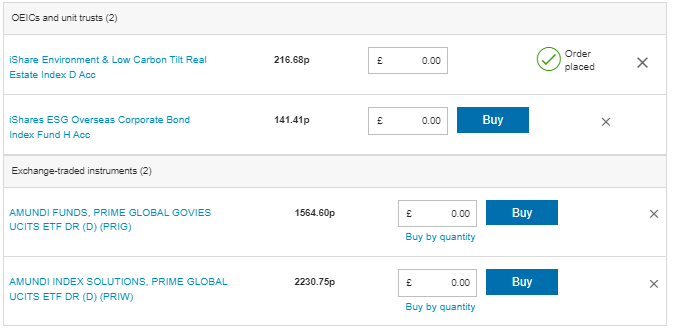
Buying the second fund
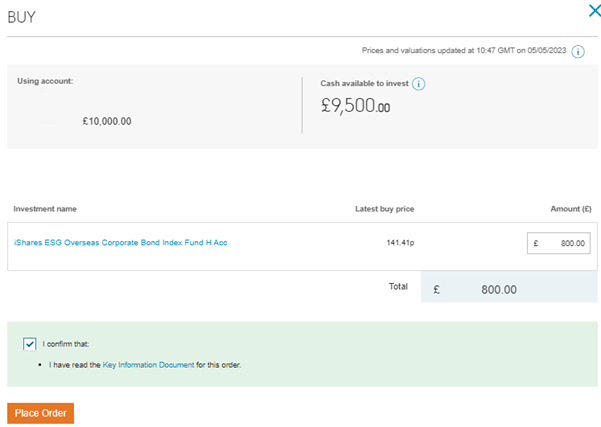
From here, I click the blue “Buy” button for “iShares ESG Overseas Corporate Bond Index Fund H Acc”, which brings up the following screen. Here, I type the amount I want to buy (£800-worth in this instance) and click the “I confirm that” tick box at the bottom:
I then I click the orange “Place Order” button at the bottom which brings me to this screen:
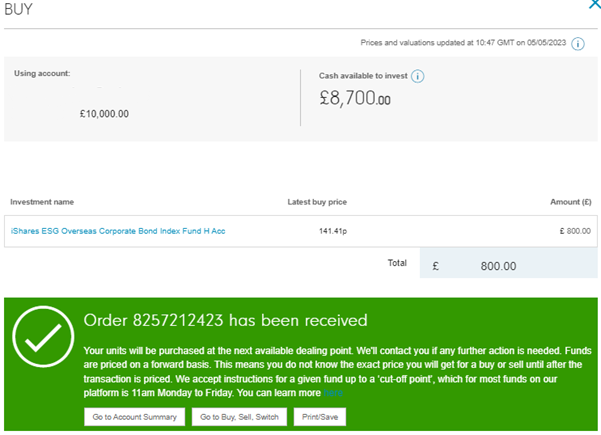
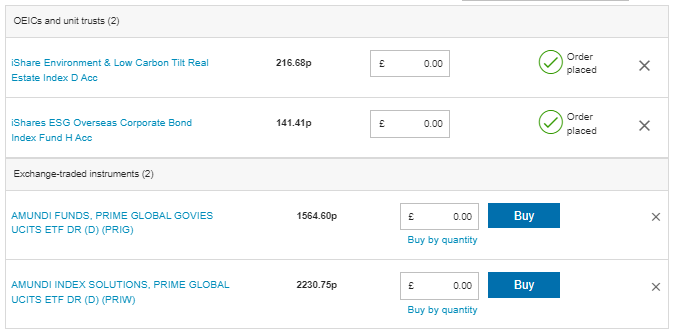
Now I click the “Go to Buy, Sell, Switch” button, which again takes me to this screen:
Return to the top of the screen
Buying the third fund – problems I encountered
“AMUNDI FUNDS, PRIME GLOBAL GOVIES…” is next. I type £800 in the box in the screen above…

…and I then click “Buy” which should have continued the process as demonstrated above. Instead I hit a problem with the website and was sent to this screen:
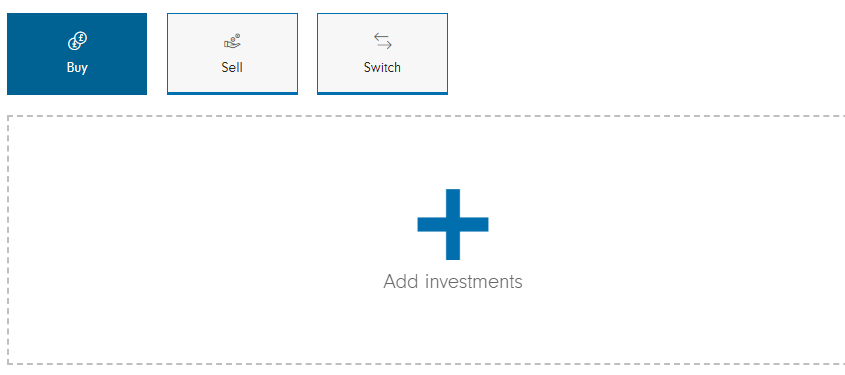
Fidelity’s system then told me that I had £8,700 to invest…but I didn’t have any investments. I logged out and logged back in.
The point here is that no-one has a perfect system. I’m not highlighting Fidelity’s shortcomings, I’m just relating my experience of investing with them so that when something like this happens to you, and it probably will, it might not be your fault, but that of the company involved.
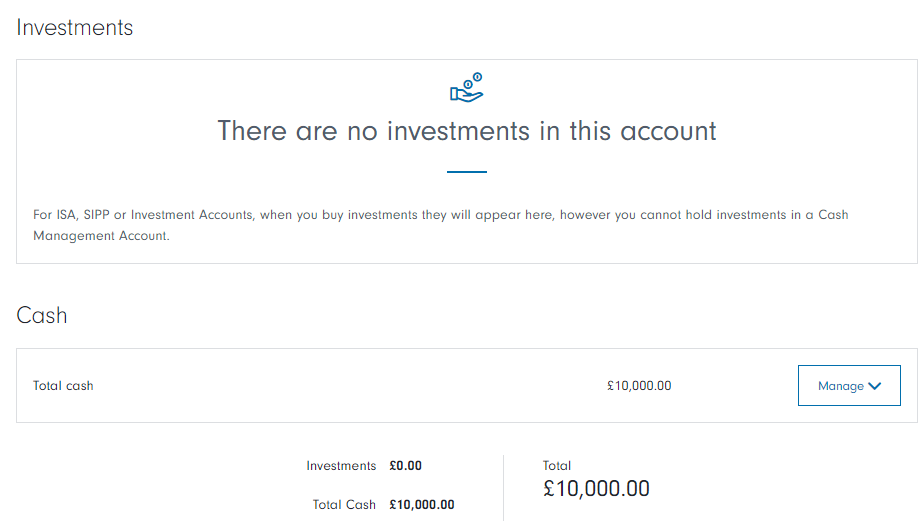
I ended up having to phone Fidelity because its website was telling me on one page that I had £9,500 in cash and £500 invested, while on another page it was telling me that I had £8,700 in cash and £1,300 invested.
I hit refresh and was presented with this screen:
Using Fidelity’s helpline
I dialled the Fidelity support line (0333 300 3350 from the UK or +44 1737 838 000 from outside the UK) went through the menu process and waited for a total time of just under eight minutes.
Then I spent 13 minutes trying to explain to the very polite and patient support person what had happened. The upshot was that the two orders had been placed and that I should wait for them to show up on the system in a few days’ time.
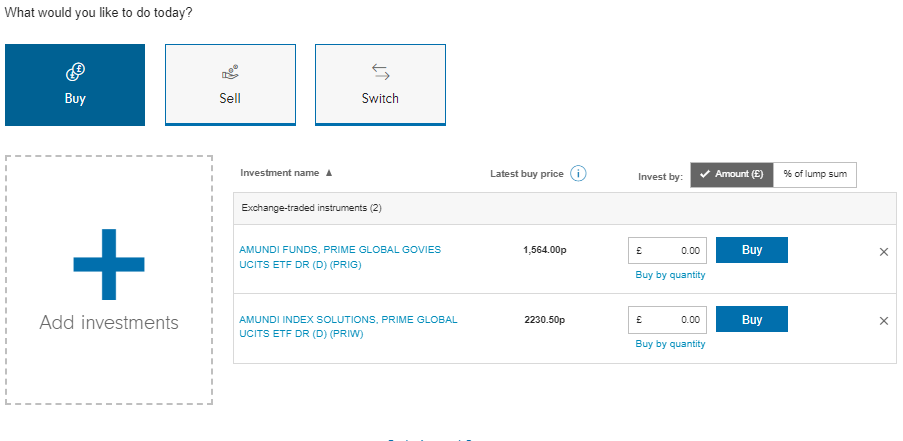
So, once again, I went to the “Add investments” screen and added the third and fourth investments that I’d not yet been able to place orders for, as shown in this screen:
Buying the third fund successfully
Once again, I put the amounts in I wanted to buy:
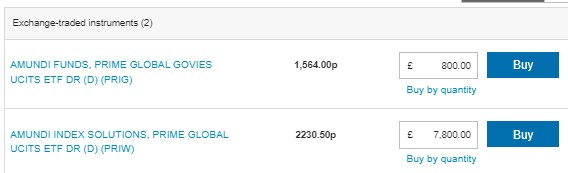
And then clicked the blue “Buy” button for “AMUNDI FUNDS…”, taking me to this screen:
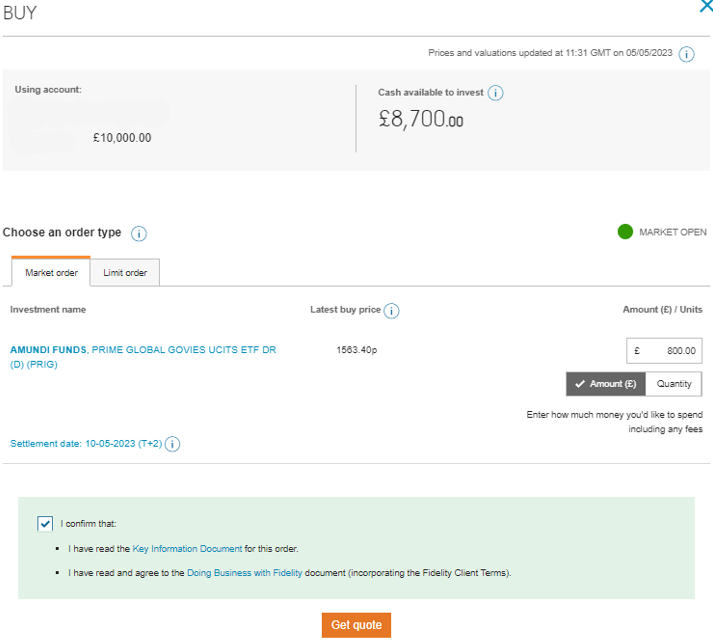
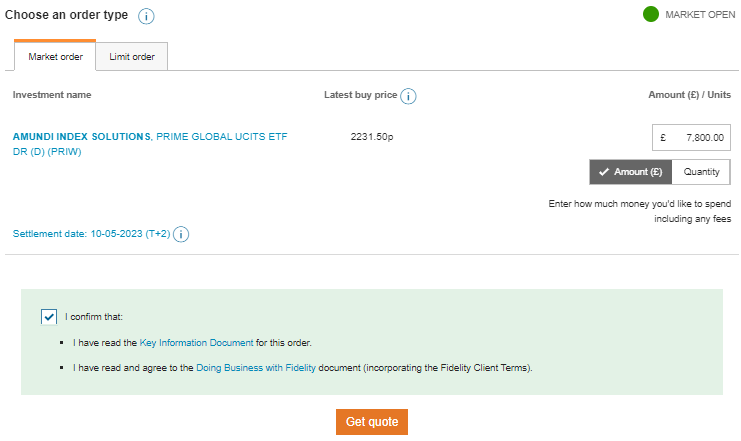
I then clicked “Get quote” and this screen appeared:
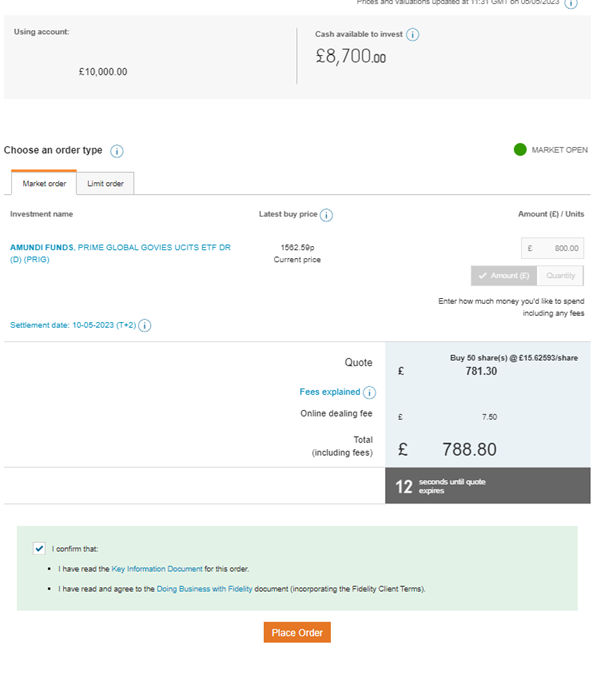
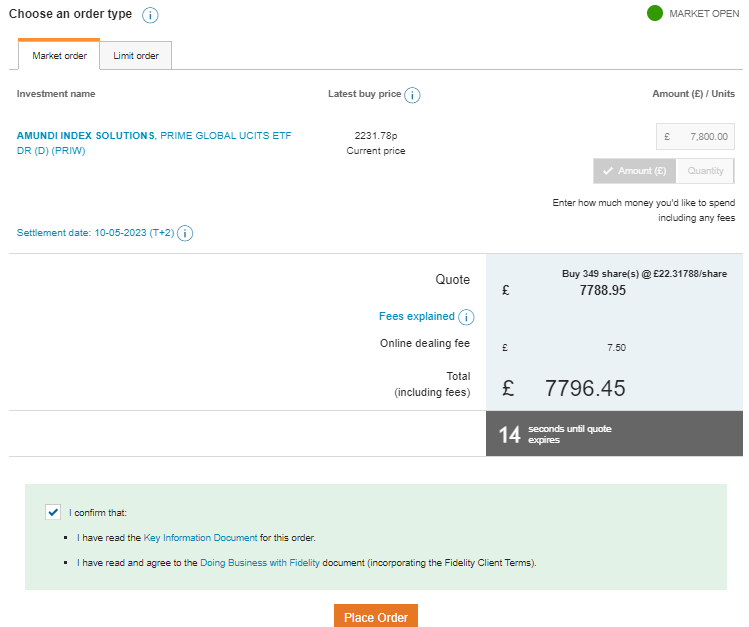
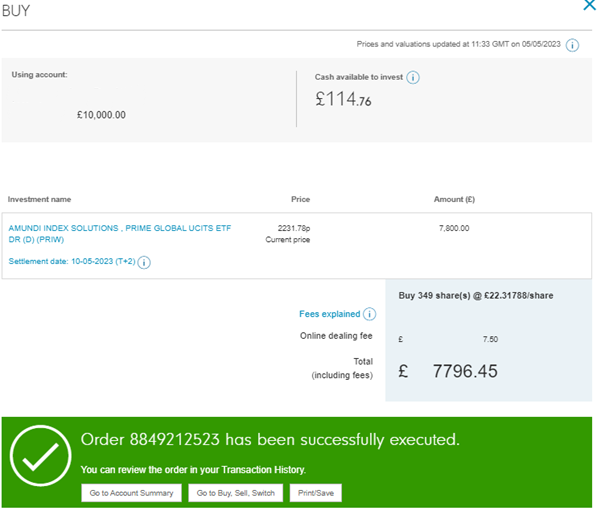
I clicked “Place Order” which generated the familiar “Amundi Funds Order Executed” message.
I then clicked the “Go to Buy, Sell, Switch” button.
Buying the fourth fund
That seemed to work, and I only had one fund left to add. Here we go!
I clicked “Buy”…
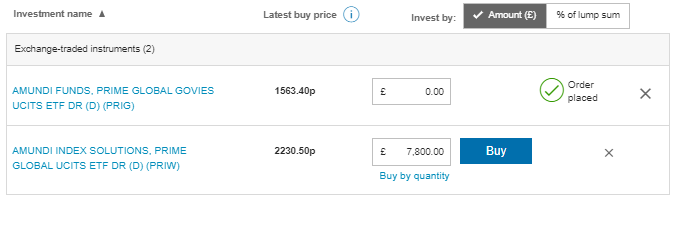
…clicked “Get quote”…
…clicked “Place Order”…
…which brought up this screen:
…clicked “Go to Buy, Sell, Switch”…
Confirming that I’d bought the third and fourth funds
And then saw that still only the most recent two funds I had ordered were being shown. (The telephone support person repeatedly couldn’t explain why the two funds I’d already ordered were not appearing here anymore).
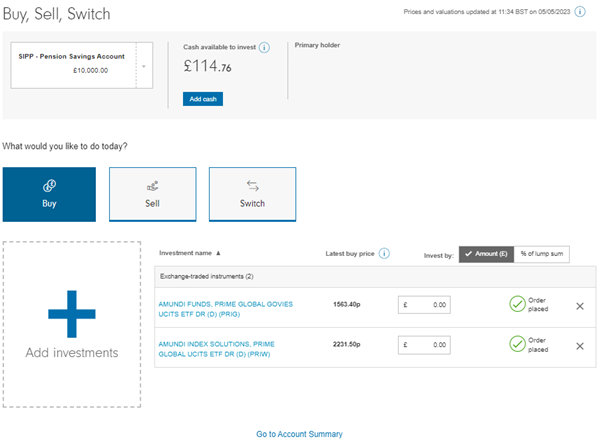
I got there in the end. And that’s it for a year! I can now go and enjoy my life, which is what this is all about.
It shouldn’t be this frustrating for you. It should work. However, as I mentioned, I want to be totally honest and transparent with you. First, I think that’s the right way to be. And, second, it helps to forewarn you of similar things that you might encounter.
Note the cash balance and the small loss
At the top of the screen “Cash available to invest” is £114.76. It’s a few quid over £100, which is the allocation I would want for most investment classes. However, this is a SIPP, so I’ll nudge that up towards £200 so that I can rest easy in the knowledge that fees and costs are covered for the next 12 months without my having to worry about them.
Going back to the “Account Summary”, I see that I’ve lost a little bit of money already, exactly as I expected to:
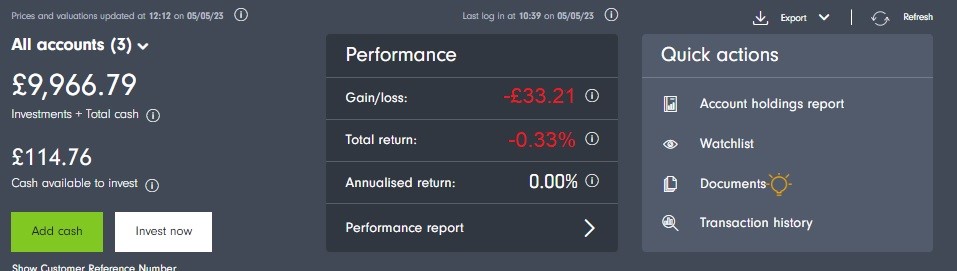
Specifically, the total value of my account is down by £33.21 or 0.33%. That’s as I expected. Whenever I buy a fund or a share, there will always be an immediate loss.
This is because the investment company makes money from you whenever you buy or sell something. There are two main ways in which it does this:
- Buy/sell spread. If you want to buy a fund that has a “mid-price” of, say, £10, that’s not what you can actually buy or sell it for.
The company will sell it to you at its “buy-price” of, say, £10.50.
And it will buy it from you at its “sell-price” of, say, £9.50.
Either way, they make a small profit from you on the transaction. - Transaction fee. This varies from platform to platform. To find out how much the transaction fee is with Fidelity, I click “Transaction history” on the right of the screen (see image above).

I don’t worry about the small loss because I’m only going to buy funds when I have at least £500 to invest (preferably more). If I have less than £500, I’ll wait until I have at least £500 to invest before buying anything, otherwise I’ll be losing too big a portion of that money in the buy/sell spreads and transaction fees.
*Links to the internet that have an asterisk (*) denote an affiliate link. This helps to keep the website free to use as the links are tracked to that website. Using the affiliate link can (but not always) lead to a payment to the InvestWithoutBeingRippedOff.com website.
Return to the top of the screen
Next steps
I can now go off and live my life for a year without thinking too much about investments. They are designed to take care of themselves.
What I do need to consider is when to add money and, if I want to, how much the portfolio is costing and what the performance is. I cover these points on the following pages on this website:
Performance and Costs – with monthly updates on how the two portfolios I set up are doing
After Investing – what I do on an annual basis to keep my investments in line with the portfolio I’m copying, and how I add money to that portfolio in a cost-efficient way.